What Are Website Design Files?
Before we dive into the specifics, let's establish a foundational understanding. Website design files are digital assets created by designers to mock up and prototype a website's appearance and user experience. They are not the website itself but rather a detailed visual representation of what the final product should look like and how it should behave. These files are crucial for a collaborative and efficient design and development workflow, allowing stakeholders to review and approve the design before any code is written.
1. PSD (Adobe Photoshop Document)
The Veteran of Raster Graphics
The .psd file format is native to Adobe Photoshop, a powerhouse in the world of digital imaging. For many years, Photoshop was the go-to tool for web design, and PSD files were the industry standard. While many designers have since transitioned to vector-based tools for UI design, Photoshop and PSDs still have their place, particularly for designs that are rich in photo-manipulation and raster graphics.
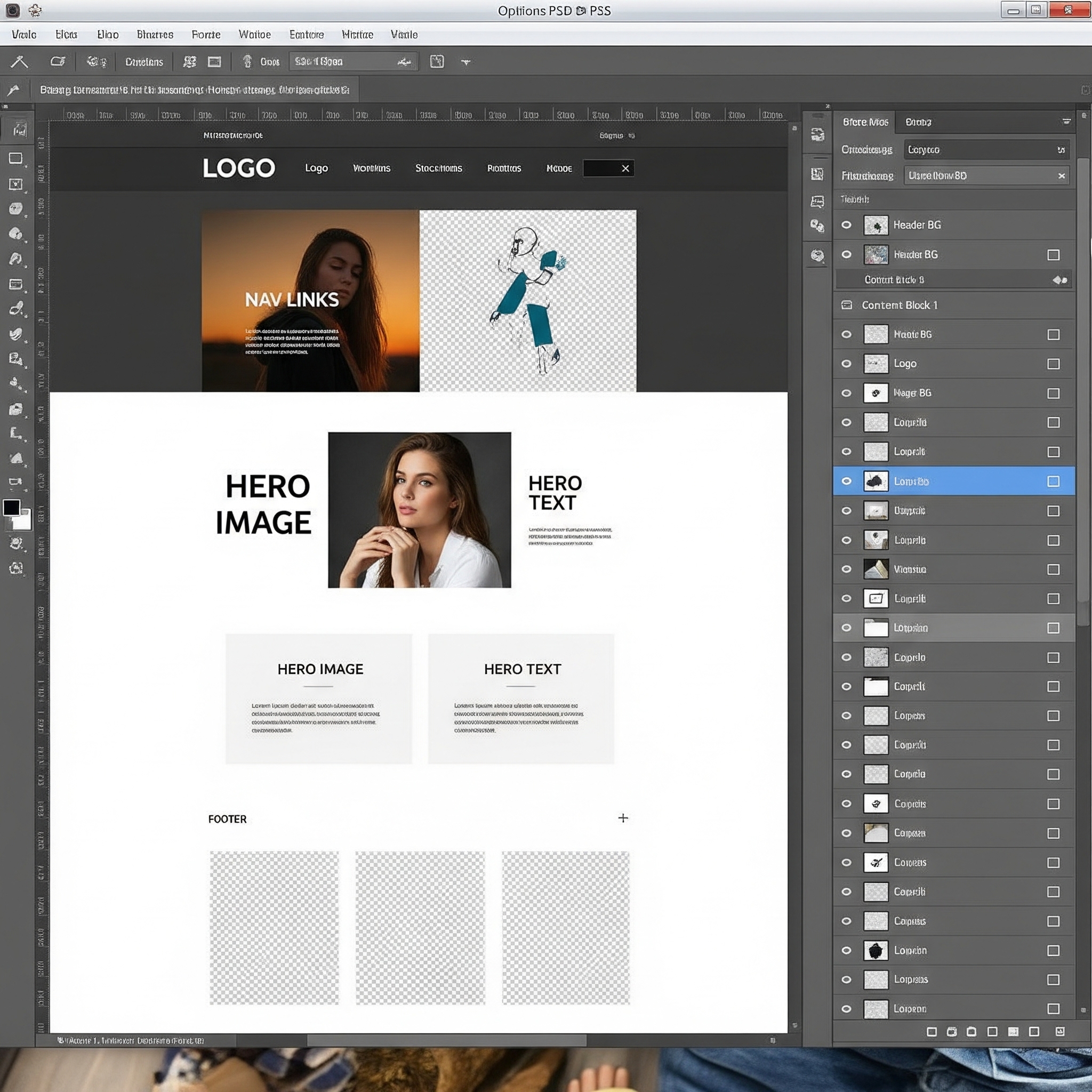
Key Features of PSD for Web Design:
- Layer-Based Editing: PSD files are organized into layers, with each element of the design (e.g., header, footer, buttons, text) residing on its own layer. This allows for granular control and easy editing of individual components.
- Rich Visual Effects: Photoshop excels at creating intricate visual effects, textures, and photo manipulations. If your website design calls for a highly detailed and visually complex aesthetic, a PSD can be a great choice.
- Pixel-Perfect Precision: As a raster-based editor, Photoshop allows for precise control over every pixel on the canvas. This is ideal for creating detailed icons, illustrations, and other graphic elements.
When to Use PSD:
- Image-Heavy Designs: For websites that rely heavily on high-quality photography and complex image compositions.
- Detailed Illustrations: When the design requires intricate, hand-crafted illustrations with rich textures and effects.
- Legacy Projects: If you're working on an existing website that was originally designed in Photoshop, you'll likely be working with PSD files.
2. Figma (.fig)
The Collaborative Champion
Figma has rapidly become a dominant force in the world of UI/UX design, and for good reason. It's a cloud-based design tool that allows for real-time collaboration, making it incredibly efficient for teams. Figma files (.fig) are accessible directly in your web browser, eliminating the need for software installation and ensuring that everyone is always working on the latest version of the design.
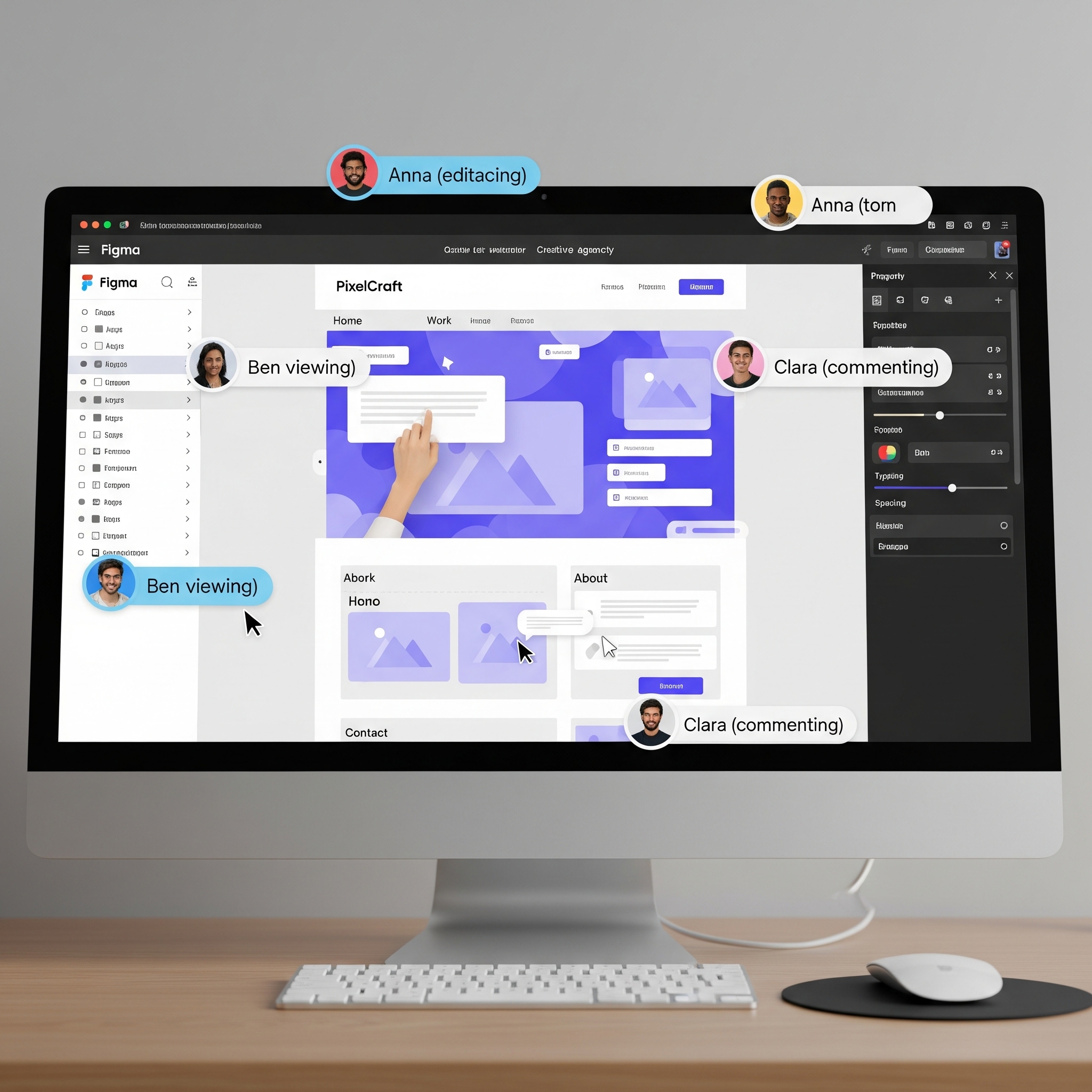
Key Features of Figma:
- Real-Time Collaboration: Multiple users can work on the same Figma file simultaneously, with each person's cursor visible on the screen. This fosters a highly collaborative and transparent design process.
- Vector-Based and Flexible: Figma is a vector-based tool, which means that all design elements are scalable without any loss of quality. This is essential for creating responsive designs that look sharp on any screen size.
- Prototyping and Animation: Figma has robust prototyping features that allow you to create interactive and animated mockups of your website. This is invaluable for user testing and for communicating design ideas to developers.
- Component-Based Workflow: Figma's "components" feature allows you to create reusable design elements (e.g., buttons, navigation bars) that can be easily updated across your entire design.
When to Use Figma:
- Team Collaboration: For any project that involves multiple designers, developers, and stakeholders.
- Responsive Design: When you need to create a website that will be viewed on a variety of devices and screen sizes.
- Interactive Prototyping: For creating high-fidelity, interactive prototypes that accurately simulate the user experience.
3. Adobe XD (.xd)
The All-in-One Prototyping Solution
Adobe XD is Adobe's answer to the growing demand for a dedicated UI/UX design and prototyping tool. It's a vector-based application that's part of the Adobe Creative Cloud suite, making it a natural choice for designers who are already familiar with other Adobe products. XD files (.xd) are known for their performance and ease of use, particularly when it comes to creating interactive prototypes.
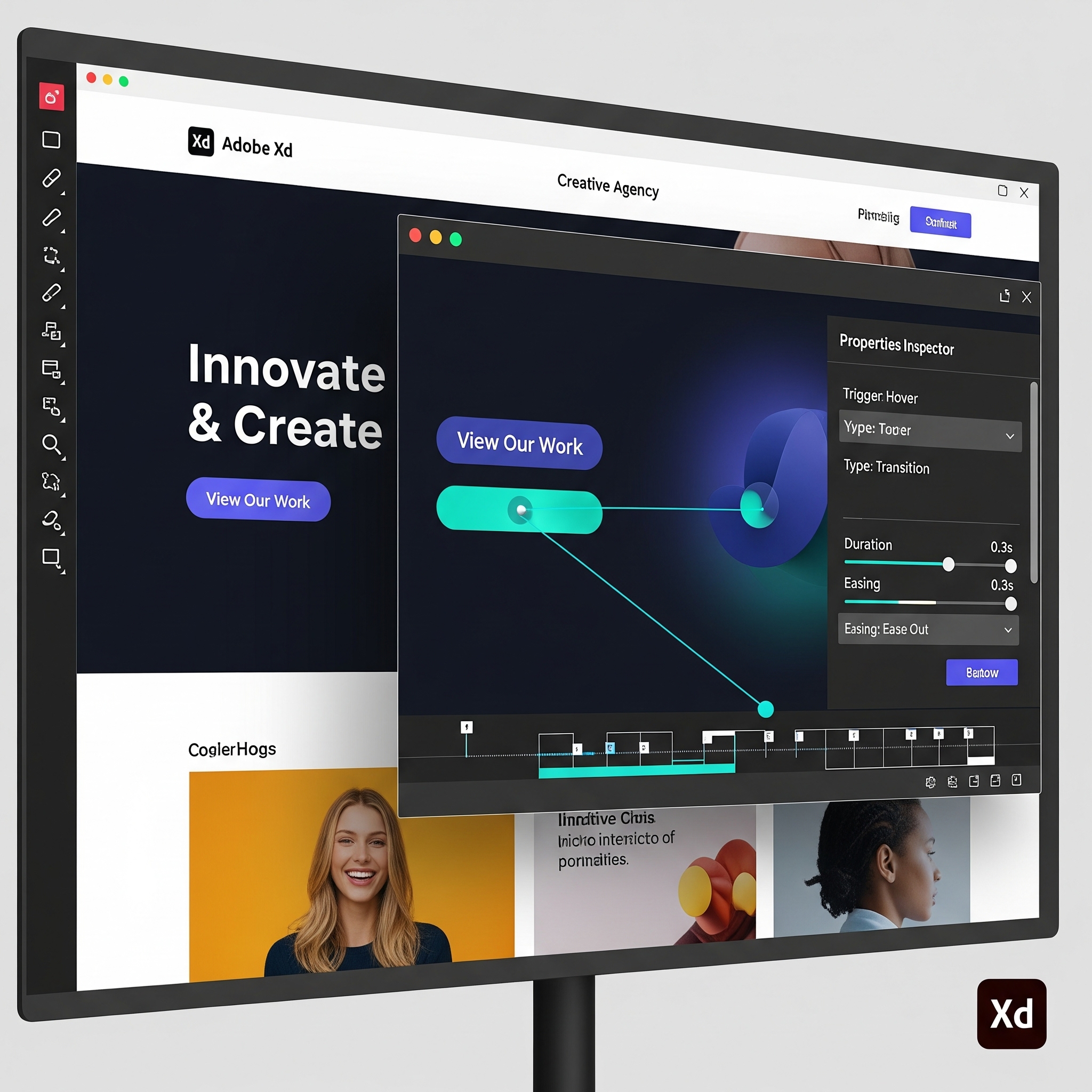
Key Features of Adobe XD:
- Seamless Prototyping: XD excels at creating interactive prototypes with smooth transitions and animations. The "Auto-Animate" feature is particularly powerful, allowing you to create complex animations with minimal effort.
- Repeat Grid: This feature is a huge time-saver for creating repeating elements like product listings, photo galleries, and contact lists.
- Integration with Creative Cloud: XD integrates seamlessly with other Adobe applications like Photoshop and Illustrator, allowing you to easily import and edit assets from your Creative Cloud libraries.
- Design Specs and Handoff: XD makes it easy to share design specifications with developers, including information about colors, fonts, measurements, and assets.
When to Use Adobe XD:
- Rapid Prototyping: For quickly creating and testing interactive prototypes.
- Adobe Creative Cloud Users: If you're already invested in the Adobe ecosystem, XD will fit naturally into your workflow.
- UI/UX for Apps and Websites: XD is a versatile tool that's well-suited for designing both websites and mobile applications.
4. Sketch (.sketch)
The Mac-Native Pioneer
Sketch was one of the first design tools to challenge Photoshop's dominance in the web design world. It's a vector-based editor built exclusively for macOS, and it quickly gained a loyal following for its intuitive interface and powerful features. Sketch files (.sketch) are known for their clean and organized structure, making them a favorite among many UI/UX designers.
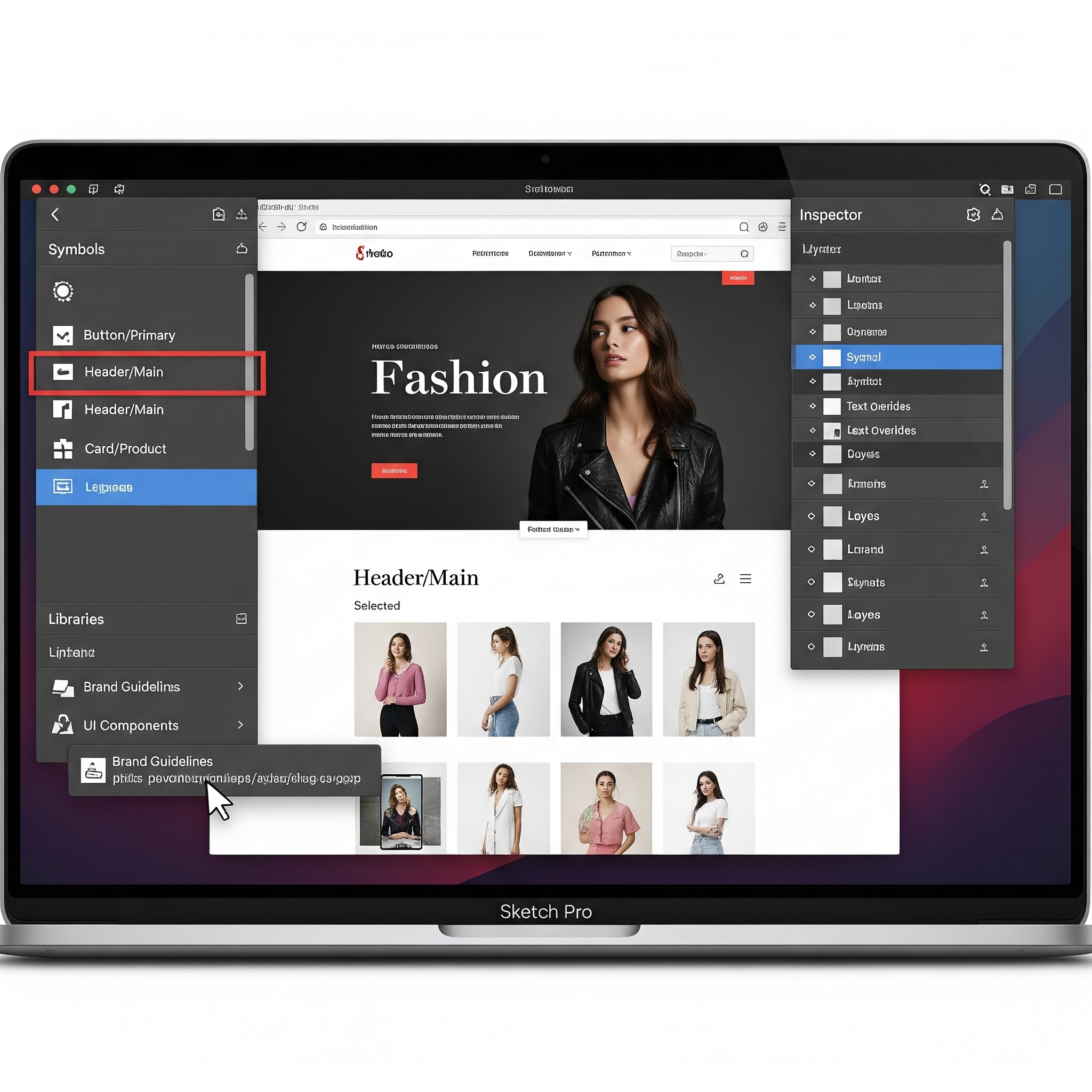
Key Features of Sketch:
- Vector-Based and Precise: Like Figma and XD, Sketch is a vector-based tool that's ideal for creating scalable and responsive designs.
- Symbols and Libraries: Sketch's "symbols" feature is similar to Figma's "components," allowing you to create reusable design elements that can be easily updated throughout your project. You can also create shared libraries of symbols that can be used across multiple projects.
- Extensive Plugin Ecosystem: Sketch has a vast library of plugins that extend its functionality and allow you to customize your workflow.
- Strong Community and Resources: Sketch has been around for a while, so there's a large and active community of designers who share resources, tutorials, and plugins.
When to Use Sketch:
- Mac Users: Sketch is a macOS-only application, so it's a great choice for designers who work exclusively on Macs.
- UI/UX for Apple Platforms: Sketch is particularly well-suited for designing applications for iOS, macOS, and watchOS.
- Designers Who Value a Native App Experience: If you prefer working with a native desktop application rather than a web-based tool, Sketch is a great option.
5. Adobe Illustrator (.ai)
The Master of Vector Graphics
Adobe Illustrator is the industry standard for creating vector graphics. While it's not primarily a UI/UX design tool, it plays a crucial role in the web design process, particularly for creating complex illustrations, logos, and icons. Illustrator files (.ai) are infinitely scalable, ensuring that your graphics look sharp and crisp at any size.
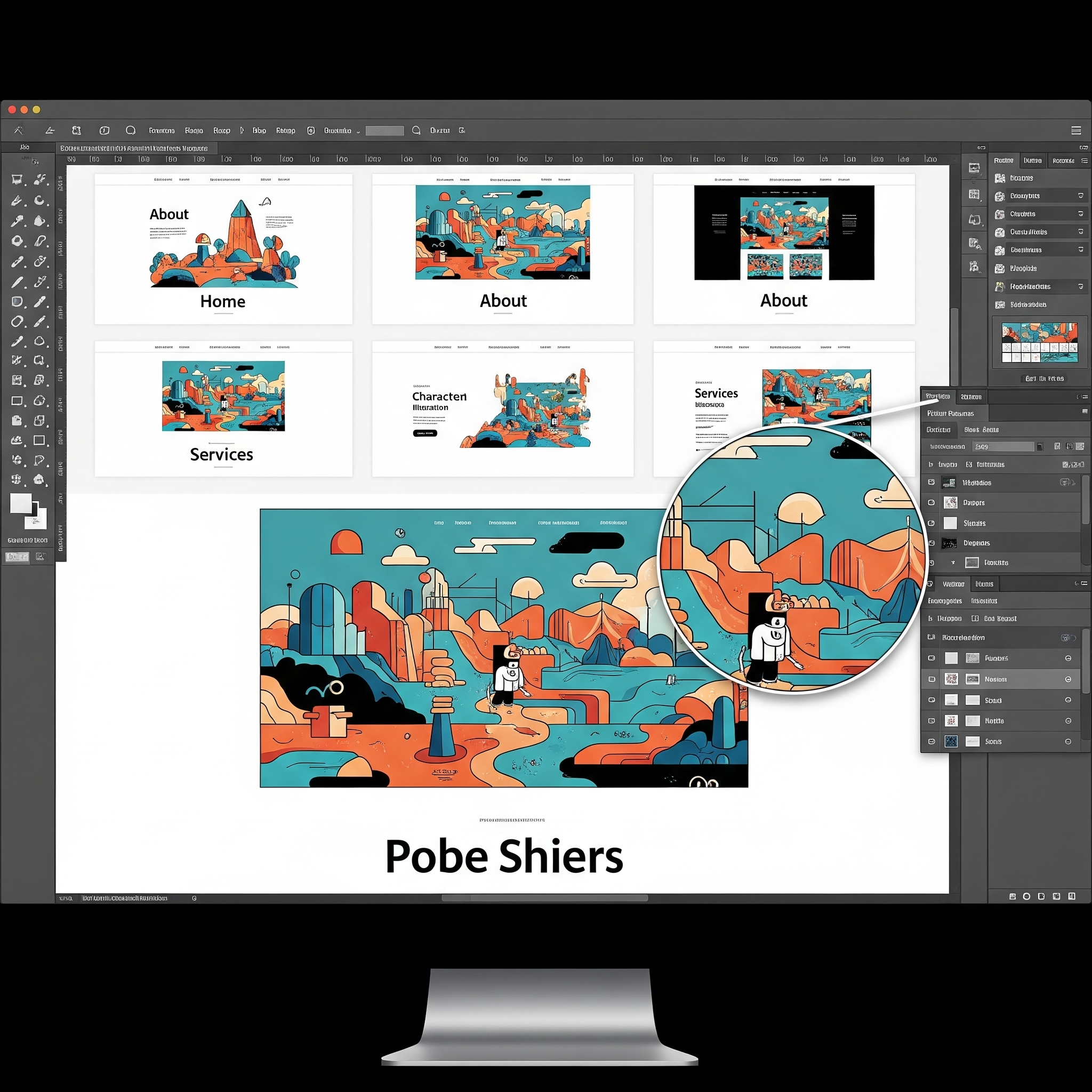
Key Features of Adobe Illustrator for Web Design:
- Unrivaled Vector Editing: Illustrator offers a comprehensive set of tools for creating and manipulating vector graphics. If you can imagine it, you can probably create it in Illustrator.
- Typography and Text Control: Illustrator provides advanced typographic controls, allowing you to create beautiful and unique text layouts.
- Logo and Icon Design: Illustrator is the go-to tool for creating logos, icons, and other brand assets that need to be used in a variety of sizes and contexts.
- Seamless Integration with Other Adobe Tools: Illustrator works seamlessly with other Adobe applications like Photoshop and XD, making it easy to incorporate your vector graphics into your web design projects.
When to Use Adobe Illustrator:
- Creating Custom Illustrations and Graphics: For creating unique and scalable illustrations, icons, and other visual elements for your website.
- Logo Design and Branding: For developing a complete brand identity that includes a logo, color palette, and typography.
- SVG Exports: Illustrator is excellent for creating and exporting Scalable Vector Graphics (SVGs), which are a web-friendly format for vector images.
Conclusion: Choosing the Right Tool
As you can see, each of these design file formats has its own strengths and weaknesses. The best choice for your project will depend on a variety of factors, including the specific requirements of the design, the size and structure of your team, and your personal workflow preferences.
- For collaborative, responsive, and interactive design, Figma is often the top choice.
- For rapid prototyping and a seamless Adobe workflow, Adobe XD is a strong contender.
- For Mac users who prefer a native app experience, Sketch remains a popular option.
- For image-heavy designs and detailed illustrations, Adobe Photoshop still has its place.
- For creating custom vector graphics and brand assets, Adobe Illustrator is an indispensable tool.
By understanding the key features and use cases of each of these design file formats, you'll be better equipped to communicate with your design team, make informed decisions about your project, and ultimately, create a website that is both beautiful and functional.
A Note on Content Depth
This page provides a comprehensive overview of the main website design files. To expand this content significantly, you could add more detailed tutorials for each software, include project case studies, or add interviews with professional designers for their insights. This structure is a great starting point for a much larger resource!
Web Design Tutorials
How to Design a Responsive Website from Scratch
Learn to design mobile-friendly websites using HTML, CSS, and Bootstrap.
Read TutorialBeginner’s Guide to Figma for Web Designers
Master Figma basics to create professional web designs faster.
Read TutorialHow to Choose the Right Color Scheme for Your Website
Tips and tools for selecting the perfect colors for your brand.
Read TutorialWeb Development Tutorials
Convert PSD/Figma Design to HTML
Step-by-step guide to turning your designs into functional code.
Read TutorialHow to Build a Website with WordPress
Create and customize a WordPress site with themes and plugins.
Read TutorialHow to Improve Website Speed
Optimize your site for faster load times and better rankings.
Read TutorialAI + Web Tutorials
How to Use AI to Generate Website Content
Leverage AI tools to create engaging, SEO-friendly content.
Read TutorialUsing ChatGPT to Write Website Code
Automate coding tasks and speed up development with AI.
Read TutorialAI Tools for Web Designers & Developers
Discover the best AI tools to enhance your workflow.
Read Tutorial